 homepage | the beginning of



Even in the era of modern settings menus, the classic Windows Control Panel remains a sysadmin’s best friend for granular control. Looking closely at the Customize Settings window inside Windows Defender Firewall, we see the exact frontline defense separating your machine from network threats.
The interface cleanly divides your connection profiles into two distinct zones: Private network settings (for trusted home or office Wi-Fi) and Public network settings (for airports, cafés, and untrusted hotspots). In both sections, keeping Turn on Windows Defender Firewall selected with the green shield is non-negotiable for solid endpoint security.
Notice the two checkboxes underneath each profile:
- Block all incoming connections, including those in the list of allowed apps: Leave this unchecked for daily use, unless you are on a hostile public network and want total lockdown (be aware it will break LAN sharing and remote access).
- Notify me when Windows Defender Firewall blocks a new app: Keep this checked! It gives you immediate visibility whenever a newly installed tool tries to phone home or accept traffic.
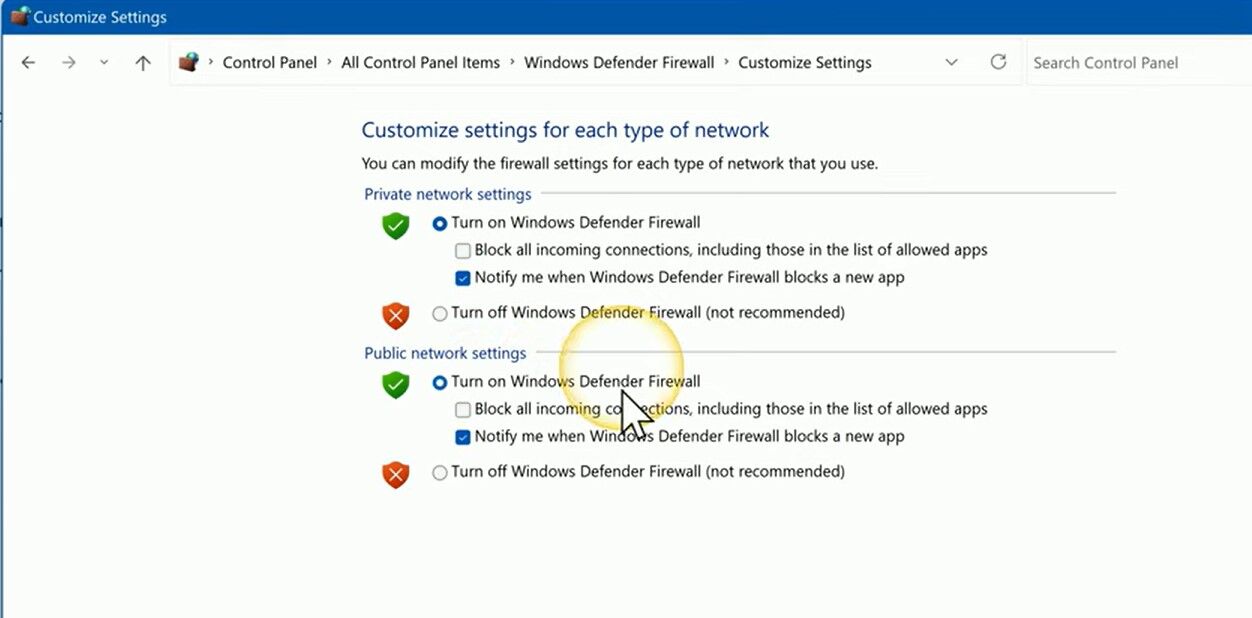
Avoid selecting the red shield option to turn off the firewall unless you are temporarily isolating a complex routing issue.
For more deep-dive IT guides, tech insights, and troubleshooting tips, visit my website at https://matteocasiraghi.it.
#Windows #CyberSecurity #Networking


Leave a Reply