 homepage | the beginning of

Hey there, tech friends! 👋 How many times have you walked away from your desk for a quick coffee ☕, leaving your PC completely exposed to passersby? Or maybe you’re worried about a sneaky script trying to guess your passwords? 😱 Today, we are diving into some serious (but fun!) IT hardening using the Windows Local Security Policy console (secpol.msc). Let’s dissect the exact settings shown in our screenshot! 💎
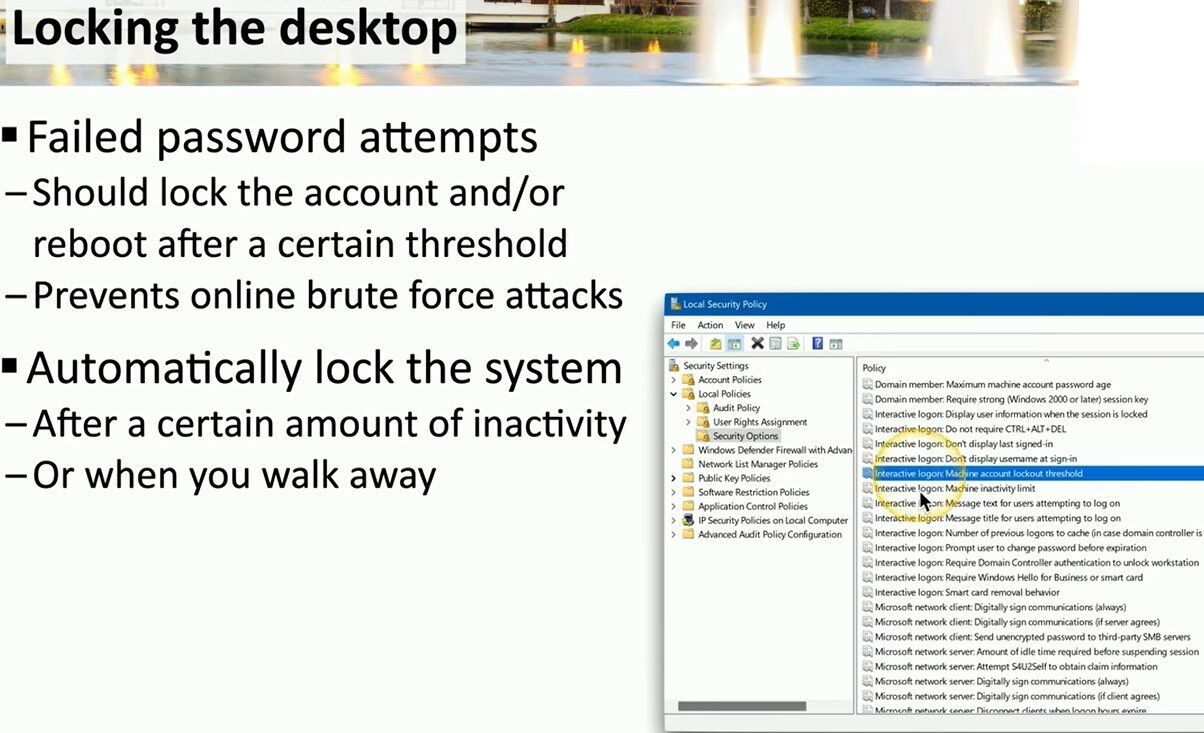
Under Security Settings > Local Policies > Security Options, we find two absolute lifesavers:
🎯 1. Interactive logon: Machine account lockout threshold
This bad boy defines exactly how many failed password attempts someone can make before Windows says “NOPE!” 🛑 and locks the account or forces a reboot. It is your ultimate shield against automated brute-force attacks! No guess-fests allowed here! 🙅♂️
⏳ 2. Interactive logon: Machine inactivity limit
Forget to hit Win + L when you run to the breakroom? 🏃♂️ This setting enforces a strict inactivity timer in seconds. Once the clock runs out, Windows automatically locks your screen, saving you from hilarious office pranks! 🥸
🛠️ Quick IT Troubleshooting Tips:
• 💥 The “Too Fast” Drama: Users complain screens lock while reading long PDF files. Fix: The inactivity limit is set too low! Increase the seconds to give them a bit more time to breathe. 😮💨
• 💥 The “Ghost” Lockout: An account keeps locking out randomly. Fix: Open Event Viewer! Track down those failed logon events—it is usually a forgotten background script or an old cached password on a mobile device. 🕵️♂️
For more awesome guides on sysadmin life and cybersecurity, visit my website right now: 👉 https://matteocasiraghi.it 👈
Stay safe, lock those screens, and keep your infrastructure rock-solid! 🚀🔥
#WindowsSecurity #CyberSecurity #SysAdmin


Leave a Reply