 homepage | the beginning of

🖨️ Troubleshooting Garbled Print Output: Technical Guide
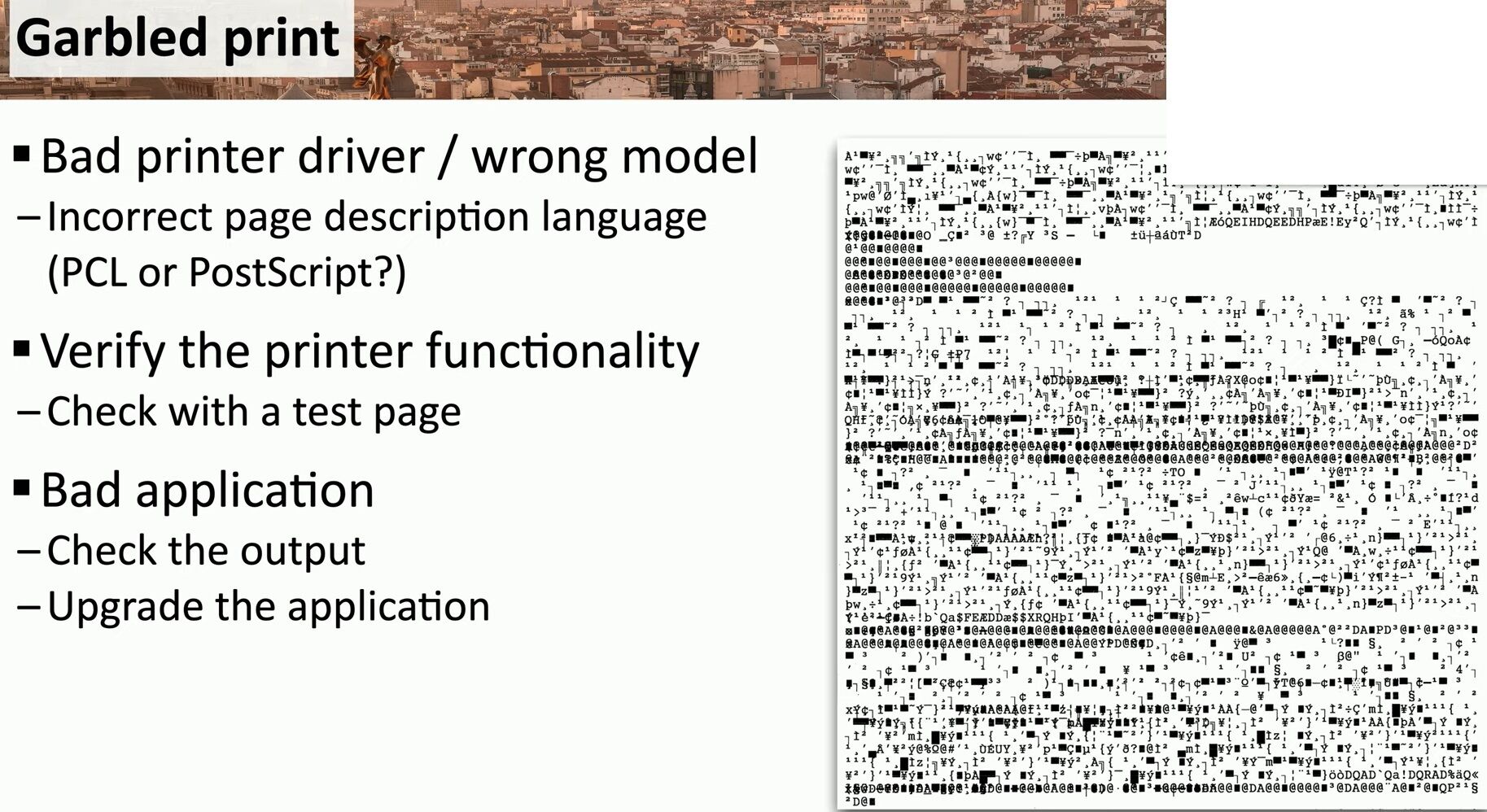
Garbled printouts—full of random characters, blocks, or unreadable symbols—are a classic symptom of miscommunication between the computer and the printer. If your output resembles a binary mess (as shown), it’s not a hardware fault, but almost always a configuration issue. Let’s examine the three primary causes.
🔧 1. Incorrect Printer Driver or Model Mismatch
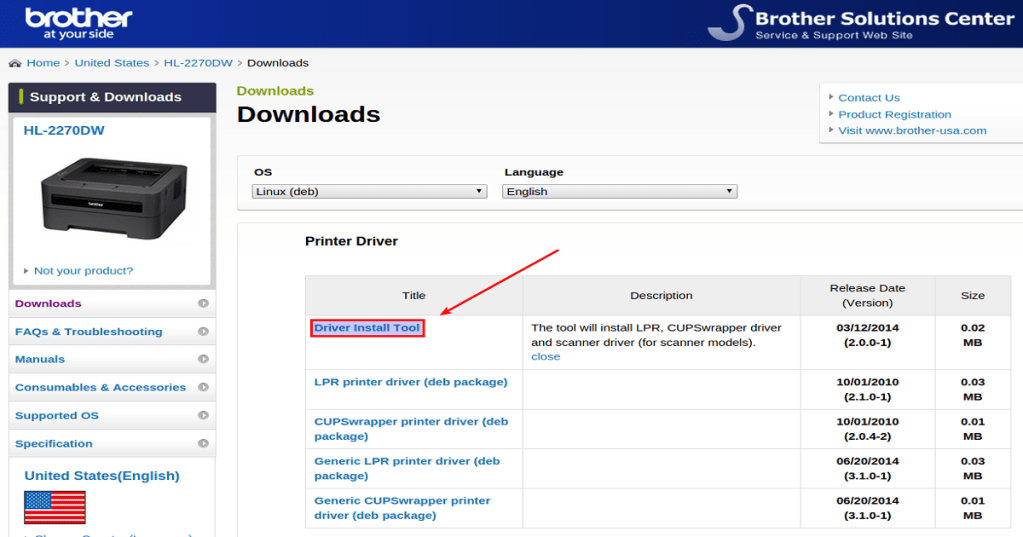
The most frequent cause is a wrong or outdated driver. Modern printers use specific Page Description Languages (PDLs) such as PCL (Printer Command Language) or PostScript. A mismatch—like using a PCL driver with a PostScript printer—results in corrupted output. Always verify the exact model and install the official driver from the manufacturer’s site.
🧪 2. Faulty Printer Functionality? Verify it.
Print a test page directly from the printer’s onboard menu (not from the computer). If the test page is clear, the printer hardware is fine. If garbled, the printer itself may have firmware issues or internal memory corruption—check for firmware updates.
📦 3. Application or OS-Level Issues
Some applications may produce malformed print jobs, especially if running in compatibility mode or when outdated. Print the same file from another application to compare. If the issue persists across software, update the operating system and test print drivers again.
💡 Pro Tip:
Avoid using generic or universal print drivers unless necessary. They often default to the lowest-common-denominator PDL, introducing risks of incompatibility and reduced feature support.
🔍 Want to dive deeper into printer compatibility and troubleshooting? Explore more on Matching Tips
#PrinterTroubleshooting #PostScriptError #PrintDriverIssues
 the beginning of matching tips
Leave a comment