 homepage | the beginning of

Automating File Transfers with Batch Scripts: How to Use .bat with XCOPY
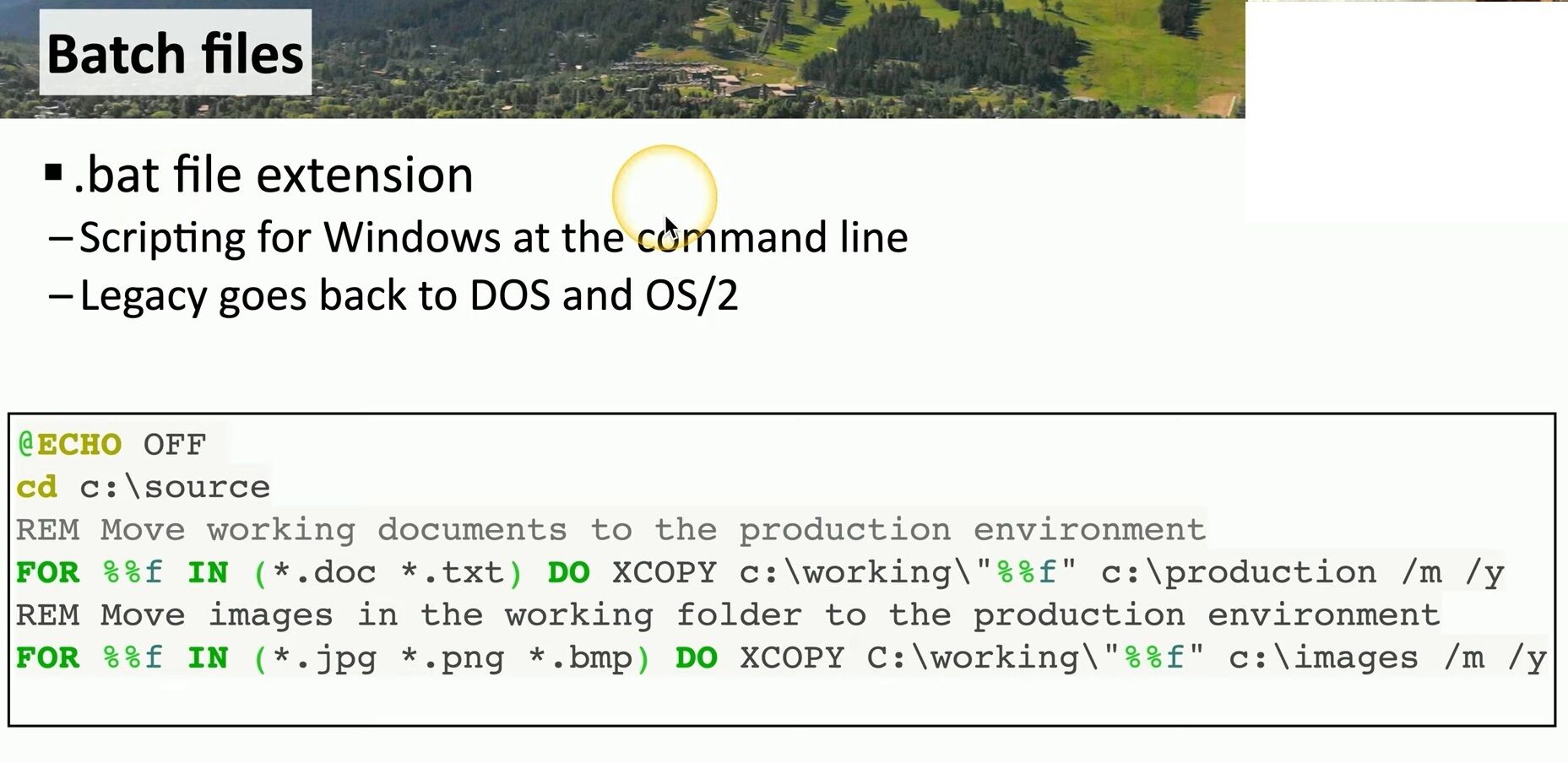
Batch files (.bat) are a powerful way to automate tasks in Windows using command-line scripting. One of the most common tasks is copying files from one directory to another. With the XCOPY command, you can efficiently transfer specific file types while controlling overwrites and archive attributes.
How to Create and Use a Batch File
- Open Notepad or any text editor.
- Copy and paste the following script:
@ECHO OFF

cd C:\source

FOR %%f IN (*.txt) DO XCOPY "%%f" C:\backup /M /Y - Save the file as copy_txt_files.bat (make sure to select “All Files” instead of “.txt” in the Save As type).
- Double-click the
.batfile to execute it.
Explanation of the Script
@ECHO OFF: Prevents command output from being displayed on screen.cd C:\source: Moves into the source directory where.txtfiles are located.FOR %%f IN (*.txt) DO XCOPY "%%f" C:\backup /M /Y:
Loops through all.txtfiles inC:\source.UsesXCOPYto copy each file toC:\backup./M: Copies only files with the archive attribute set, then clears it./Y: Suppresses overwrite confirmation.
Why Use a Batch File?
Instead of manually running commands in the Command Prompt every time, you can automate the task with a .bat file, saving time and reducing errors.
🔗 Visit Matching Tips for more batch scripting tips!
#BatchScripting #WindowsAutomation #XCOPY
 the beginning of matching tips
Leave a comment