 homepage | the beginning of


Troubleshooting “Limited or No Connectivity” in Windows
Encountering a “Limited or No Connectivity” error on Windows can be frustrating, especially when trying to access the internet. This issue usually indicates a problem with DHCP configuration, IP addressing, or network connectivity. Here’s how to diagnose and fix it.
Identify the Issue
Windows will display an alert in the system tray, such as:
- “Limited or No Connectivity”
- “No Internet Access”
These warnings suggest that the device is connected to the network but cannot access external resources.
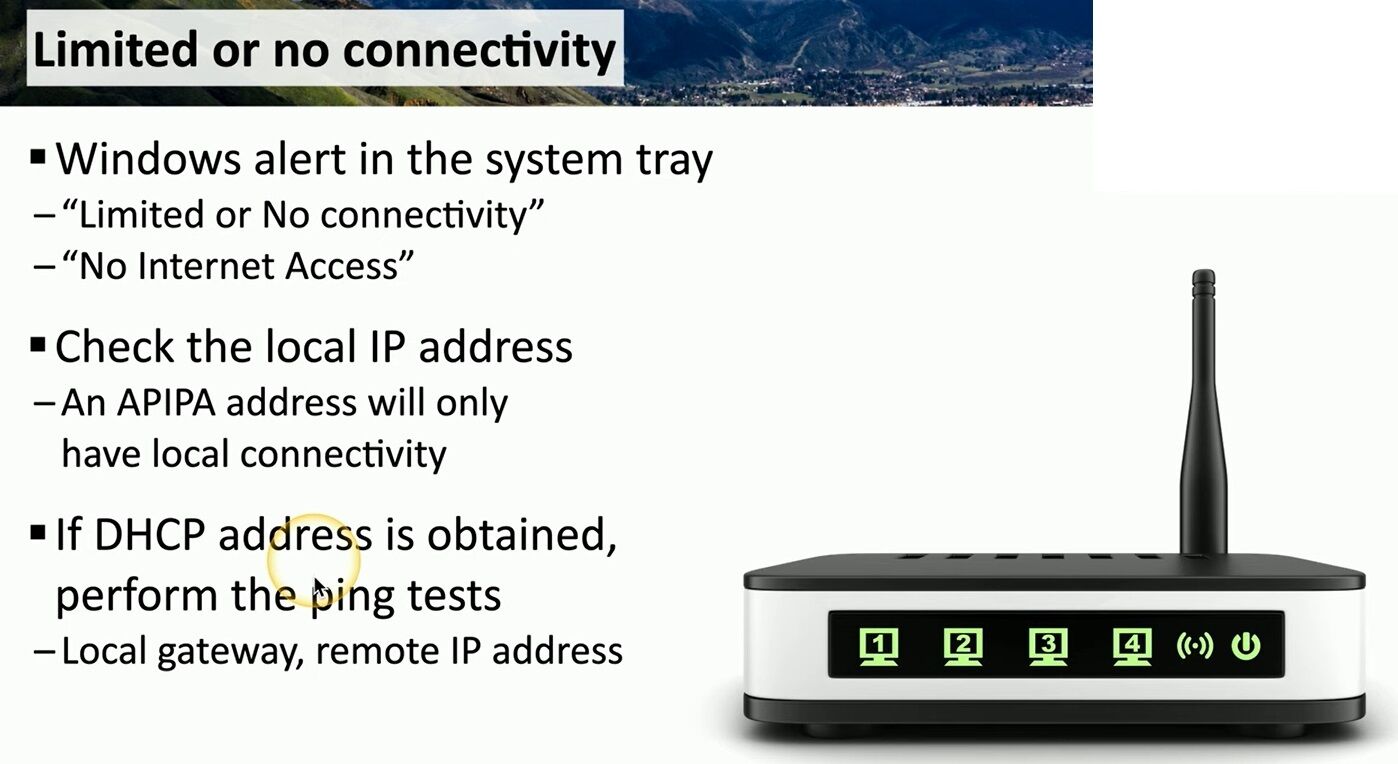
Check the Local IP Address
To determine if your PC received a valid IP address, open Command Prompt and type:
ipconfig /all
If the IP address starts with 169.254.x.x, it means the system has assigned an APIPA (Automatic Private IP Addressing) address, indicating a DHCP failure. In this case, try manually releasing and renewing the IP:
ipconfig /release
ipconfig /renew
Verify DHCP and Perform Ping Tests
If a valid DHCP address (e.g., 192.168.x.x or 10.x.x.x) is obtained, try pinging the local gateway with:
ping 192.168.1.1
If this fails, the problem is likely with the router. Restart it and check DHCP settings.
If successful, test external connectivity by pinging a public IP like 8.8.8.8:
ping 8.8.8.8
If this works but websites still don’t load, the issue is likely DNS-related.
Reset Network Settings
If the issue persists, reset the network stack using:
netsh int ip reset
netsh winsock reset
Restart the PC after running these commands.
Following these steps can help diagnose and resolve limited connectivity issues, restoring full network functionality.
#NetworkTroubleshooting #LimitedConnectivity #DHCP
 the beginning of matching tips
Leave a comment