 homepage | the beginning of


Managing Startup Programs in Windows: A Simple Guide
When you start your Windows PC, several programs launch automatically. Some of them are essential, while others can slow down your system. Luckily, Windows allows you to manage startup programs easily using the Task Manager.
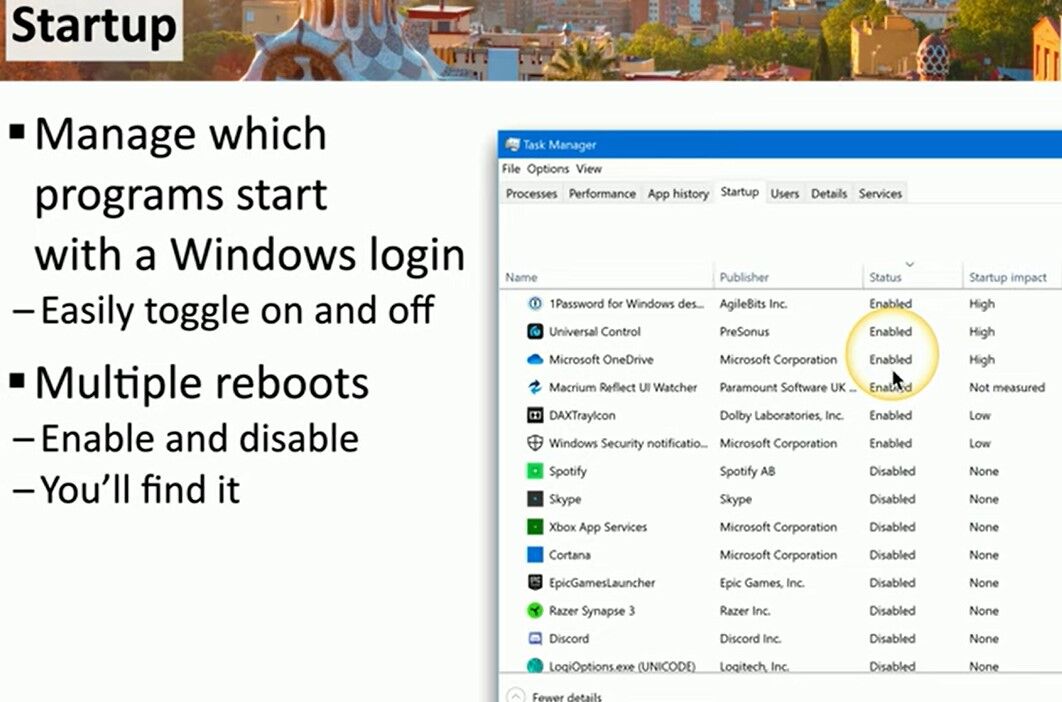
🔹 How to Manage Startup Programs
1️⃣ Press Ctrl + Shift + Esc to open Task Manager.
2️⃣ Navigate to the Startup tab.
3️⃣ Check the Status column:
- Enabled: The program starts with Windows.
- Disabled: The program does not start automatically.
4️⃣ To disable a program, right-click it and select Disable.
5️⃣ To enable it again, follow the same steps and click Enable.
🔹 Why Manage Startup Programs?
✔️ Boost System Performance – Fewer startup apps mean faster boot times.
✔️ Reduce Background Processes – Free up RAM and CPU resources.
✔️ Improve Troubleshooting – Disable unnecessary apps when diagnosing slow boot issues.
Keeping your startup programs under control ensures a smoother and more efficient Windows experience.
Find more tech tips on Matching Tips.
#WindowsTips #TaskManager #PCPerformance
 the beginning of matching tips
Leave a comment