 homepage | the beginning of


How to Configure Folder Redirection with Offline Files in Windows
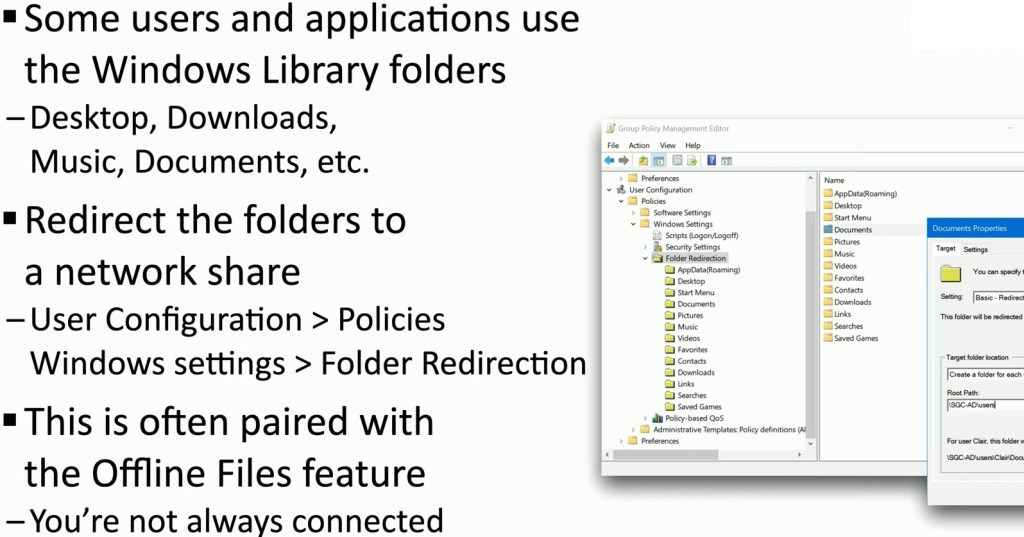
Redirecting Windows library folders like Desktop, Downloads, Documents, and Music to a network share can simplify user data management and enhance productivity in enterprise environments. This approach ensures that user data is securely stored on a central server and easily accessible across different devices.
Steps to Set Up Folder Redirection
- Access the Group Policy Management Console (GPMC):
Open the GPMC by pressingWin + R, typinggpmc.msc, and pressing Enter. - Navigate to Folder Redirection Settings:
Under “User Configuration,” expandPolicies > Windows Settings > Folder Redirection. - Select the Folder to Redirect:
Right-click the folder (e.g., Documents) you want to redirect and choose “Properties.” - Configure Target Location:
In the “Target” tab, choose “Basic – Redirect everyone’s folder to the same location.”Set the target folder location as a network share (e.g.,\\ServerName\SharedFolder\%USERNAME%). - Enable Offline Files:
Pair Folder Redirection with the Offline Files feature to allow users to access their data even when disconnected from the network.Offline Files can be enabled in the Control Panel underSync Center > Manage Offline Files. - Test the Configuration:
Log in as a user to verify that the folders are redirected correctly and sync properly when offline.
Benefits of Folder Redirection
- Centralized Management: All user data is stored on a central server, making backups and security easier to manage.
- Offline Access: With Offline Files, users can work seamlessly even without a network connection.
- Improved Performance: Redirection reduces the load on local devices and simplifies workstation replacements or upgrades.
For more technical guides and tips, visit my blog.
#WindowsTips #FolderRedirection #ITManagement
 the beginning of matching tips
Leave a comment