 homepage | the beginning of


👥 **Understanding Local Users and Groups in Windows: A Quick Guide** 👥
Today, let’s demystify one of the core components of Windows administration: **Local Users and Groups**. Whether you’re a newbie or a seasoned pro, this topic is fundamental for managing access and security on any Windows system. So, let’s dive in with a smile and some clarity!
🧑💻 **𝗨𝘀𝗲𝗿𝘀: 𝗪𝗵𝗼’𝘀 𝗪𝗵𝗼 𝗶𝗻 𝘁𝗵𝗲 𝗭𝗼𝗼?**
1. 𝗔𝗱𝗺𝗶𝗻𝗶𝘀𝘁𝗿𝗮𝘁𝗼𝗿
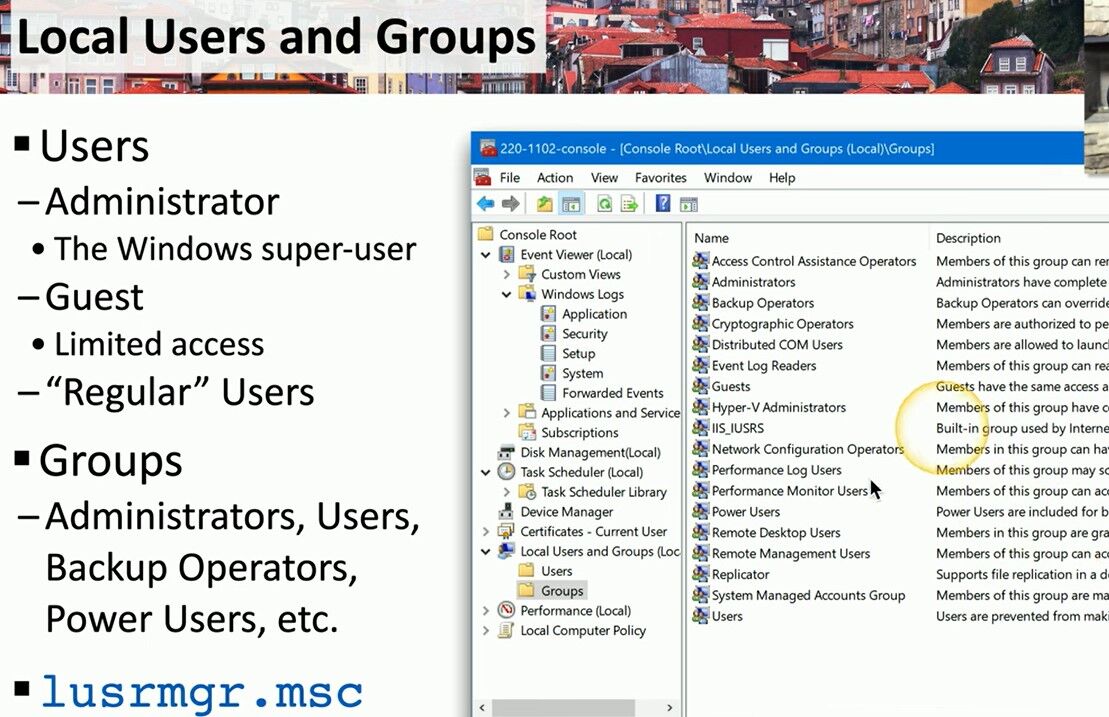
– The Boss: The Administrator account is the Windows super-user. It has the ultimate control over the system, capable of installing software, changing settings, and managing other user accounts.
2. 𝗚𝘂𝗲𝘀𝘁
– The Visitor: The Guest account has limited access, making it perfect for temporary users. It allows basic use without access to the deeper, more sensitive parts of the system.
3. 𝗥𝗲𝗴𝘂𝗹𝗮𝗿 𝗨𝘀𝗲𝗿𝘀
– The Everyday Heroes: These are the standard accounts used by most people. They have enough permissions to do everyday tasks like running applications and saving files but can’t make major changes to the system settings.
🏢 **𝗚𝗿𝗼𝘂𝗽𝘀: 𝗧𝗲𝗮𝗺𝗶𝗻𝗴 𝗨𝗽 𝗳𝗼𝗿 𝗘𝗳𝗳𝗶𝗰𝗶𝗲𝗻𝗰𝘆**
1. 𝗔𝗱𝗺𝗶𝗻𝗶𝘀𝘁𝗿𝗮𝘁𝗼𝗿𝘀
– The Power Team: Members of this group have full control over the system, similar to the Administrator user.
2. 𝗨𝘀𝗲𝗿𝘀
– The Majority: Regular users are part of this group. They have basic privileges needed for daily operations.
3. 𝗕𝗮𝗰𝗸𝘂𝗽 𝗢𝗽𝗲𝗿𝗮𝘁𝗼𝗿𝘀
– The Guardians: This group can override security restrictions to backup and restore files.
4. 𝗣𝗼𝘄𝗲𝗿 𝗨𝘀𝗲𝗿𝘀
– The Trusted Few: Power Users have more privileges than regular users but less than administrators. They can install programs and change settings for their accounts.
🛠️ **𝗠𝗮𝗻𝗮𝗴𝗶𝗻𝗴 𝗨𝘀𝗲𝗿𝘀 𝗮𝗻𝗱 𝗚𝗿𝗼𝘂𝗽𝘀 𝘄𝗶𝘁𝗵 𝗹𝘂𝘀𝗿𝗺𝗴𝗿.𝗺𝘀𝗰**
To manage local users and groups, you can use the **Local Users and Groups Manager** (`𝗹𝘂𝘀𝗿𝗺𝗴𝗿.𝗺𝘀𝗰`). This handy tool is your gateway to creating, deleting, and managing user accounts and groups. Here’s a quick guide on how to use it:
1. Open the Run Dialog: Press `Win + R` to open the Run dialog.
2. Enter 𝗹𝘂𝘀𝗿𝗺𝗴𝗿.𝗺𝘀𝗰: Type `lusrmgr.msc` and press Enter.
3. Explore and Manage: Use the console to add new users, assign them to groups, and set their permissions.
🌟 **𝗪𝗵𝘆 𝗜𝘁 𝗠𝗮𝘁𝘁𝗲𝗿𝘀**
Understanding and managing local users and groups is crucial for maintaining a secure and efficient Windows environment. Properly assigned permissions ensure that users have the access they need while keeping the system protected from unauthorized changes.
📝 **𝗧𝗶𝗽𝘀 𝗮𝗻𝗱 𝗧𝗿𝗶𝗰𝗸𝘀**
– **Regular Audits:** Regularly review the members of each group to ensure that only authorized users have elevated privileges.
– **Strong Passwords:** Ensure that all user accounts, especially those with administrative privileges, have strong, unique passwords.
– **Guest Account Management:** Disable the Guest account when not in use to enhance security.
𝗜𝗻 𝘀𝘂𝗺𝗺𝗮𝗿𝘆, local users and groups form the backbone of Windows system administration. By understanding their roles and how to manage them, you can create a secure and well-organized computing environment.
Learn more at matteocasiraghimc.wordpress.com
#WindowsAdmin #UserManagement #CyberSecurity
 the beginning of matching tips
Leave a comment