 homepage | the beginning of


🖥️ Say Hello to Nano: Your Full-Screen Text Editor Friend! 🖥️
Hey, fellow tech enthusiasts! 🌟 Let’s dive into the world of text editing with a fantastic tool that’s been a trusty companion to many Linux users: Nano. Whether you’re a seasoned programmer or just starting out, Nano is here to make your text editing experience smooth and enjoyable. Let’s explore why Nano is the editor you need in your life, all while keeping things light and breezy. 😊
What is Nano?
Nano is a full-screen text editor that’s simple, intuitive, and powerful. It’s like the Swiss Army knife of text editors—compact, handy, and ready to tackle any editing task you throw its way. 🛠️ It’s included with many Linux distributions and can be easily installed using package managers like apt-get or yum.
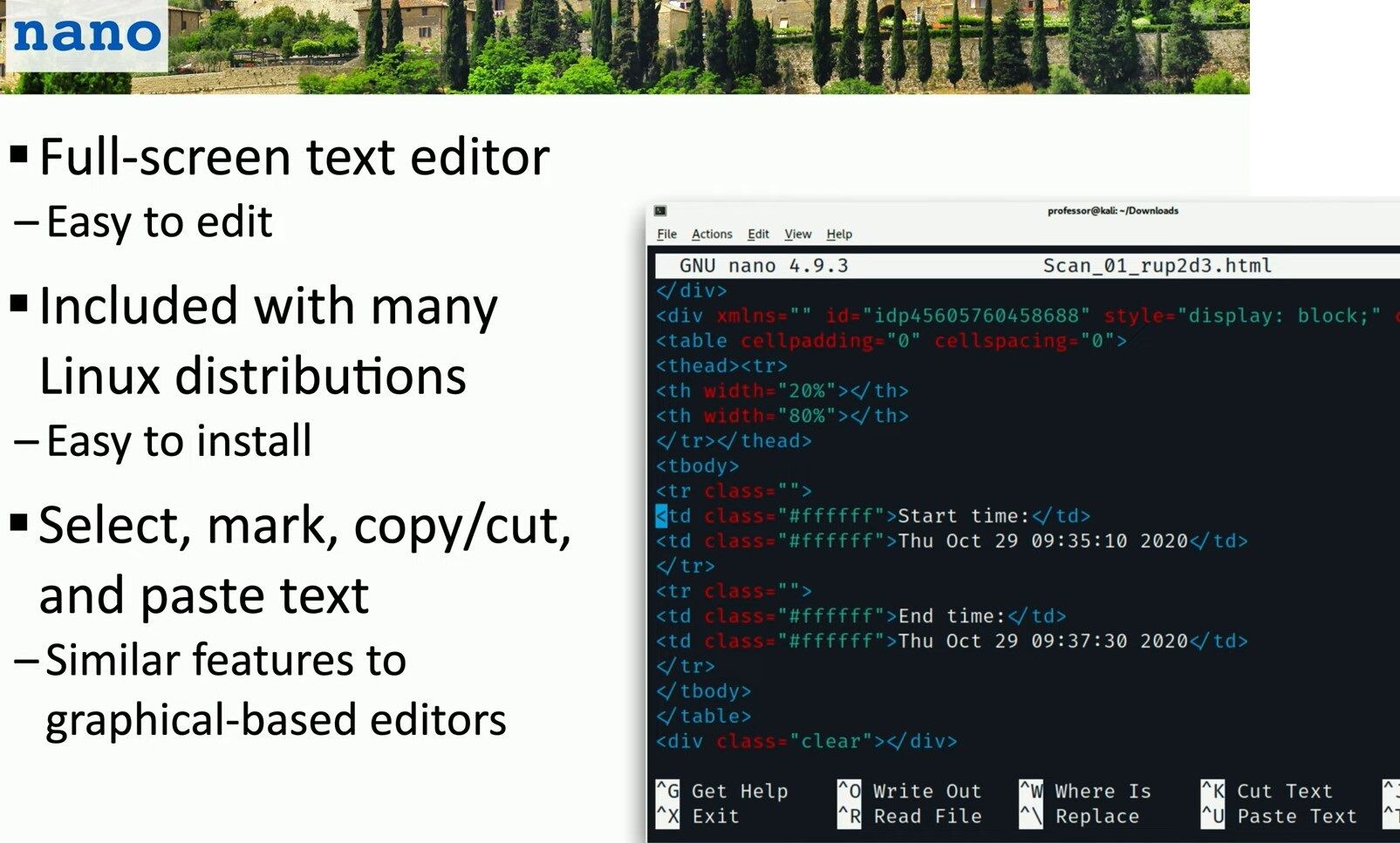
Why Choose Nano?
Here’s why Nano should be your go-to text editor:
- Ease of Use: Nano is designed to be user-friendly. It doesn’t overwhelm you with a steep learning curve. Just open it up and start editing! ✏️
- Full-Screen Editing: Enjoy a full-screen editing experience that maximizes your workspace and helps you focus on your code or text. 🖥️
- Included with Many Linux Distributions: Nano comes pre-installed with many Linux distributions. If it’s not, you can easily install it using
apt-getoryum. 🚀 - Powerful Text Manipulation: Select, mark, copy, cut, and paste text with ease. Nano offers many features similar to graphical-based editors, all within a terminal window. 📋
Features that Make Nano Awesome
Let’s look at some of Nano’s standout features:
- Simple Navigation: Move around your text with arrow keys. No need to remember complex shortcuts.
- Search and Replace: Quickly find and replace text within your document. Just press
Ctrl + Wto search andCtrl + \to replace. - Undo and Redo: Made a mistake? No problem! Undo with
Ctrl + Uand redo withCtrl + E. - Syntax Highlighting: For coding enthusiasts, Nano supports syntax highlighting, making it easier to read and write code.
Using Nano Like a Pro
Here are some tips to help you get the most out of Nano:
- Opening a File: To open a file with Nano, just type
nano filenamein your terminal. If the file doesn’t exist, Nano will create it for you. 📄 - Saving Your Work: Press
Ctrl + Oto save your file. You’ll be prompted to confirm the file name—just hit Enter to save. 💾 - Exiting Nano: Done editing? Press
Ctrl + Xto exit Nano. If you’ve made changes, Nano will ask if you want to save them before exiting. 👋
Summing It Up
Nano is more than just a text editor; it’s a reliable companion that makes text editing straightforward and efficient. Whether you’re editing configuration files, writing scripts, or just jotting down notes, Nano has got you covered. 🌟
So, why not give Nano a try today? It’s easy to install, simple to use, and packed with features that will make your text editing tasks a breeze.
👉 Learn more tips and tricks at matteocasiraghimc.wordpress.com
#Linux #NanoEditor #TextEditingMagic
 the beginning of matching tips
Leave a comment