 homepage | the beginning of


Setting Up a Login Script in a Group Policy for a Specific Organizational Unit
Automating tasks during user login can significantly improve efficiency and streamline operations within a domain.
This guide will walk you through the steps to configure a login script in a Group Policy for a specific Organizational Unit (OU). This script will execute tasks automatically when users log into their accounts.
Step 1: Write the Login Script
First, create the login script that will run when users log in. The script can be written in any scripting language supported by Windows, such as Batch, PowerShell, or VBScript. Here’s a simple example using PowerShell
Save this script as “LoginScript.ps1”
Step 2: Save the Script
Save your script in a shared folder that all users have read access to. For example, \YourServerSharedFolderLoginScript.ps1.
Step 3: Open Group Policy Management
On a domain controller or a workstation with the Group Policy Management tools installed, open the Group Policy Management Console (GPMC).
Navigate to the OU where you want to apply the login script.
Step 4: Create a New Group Policy Object (GPO)
Right-click on the target OU and select “Create a GPO in this domain, and Link it here…”.
Name the new GPO (e.g., “Login Script Policy”).
Step 5: Edit the GPO
Right-click the newly created GPO and select “Edit”.
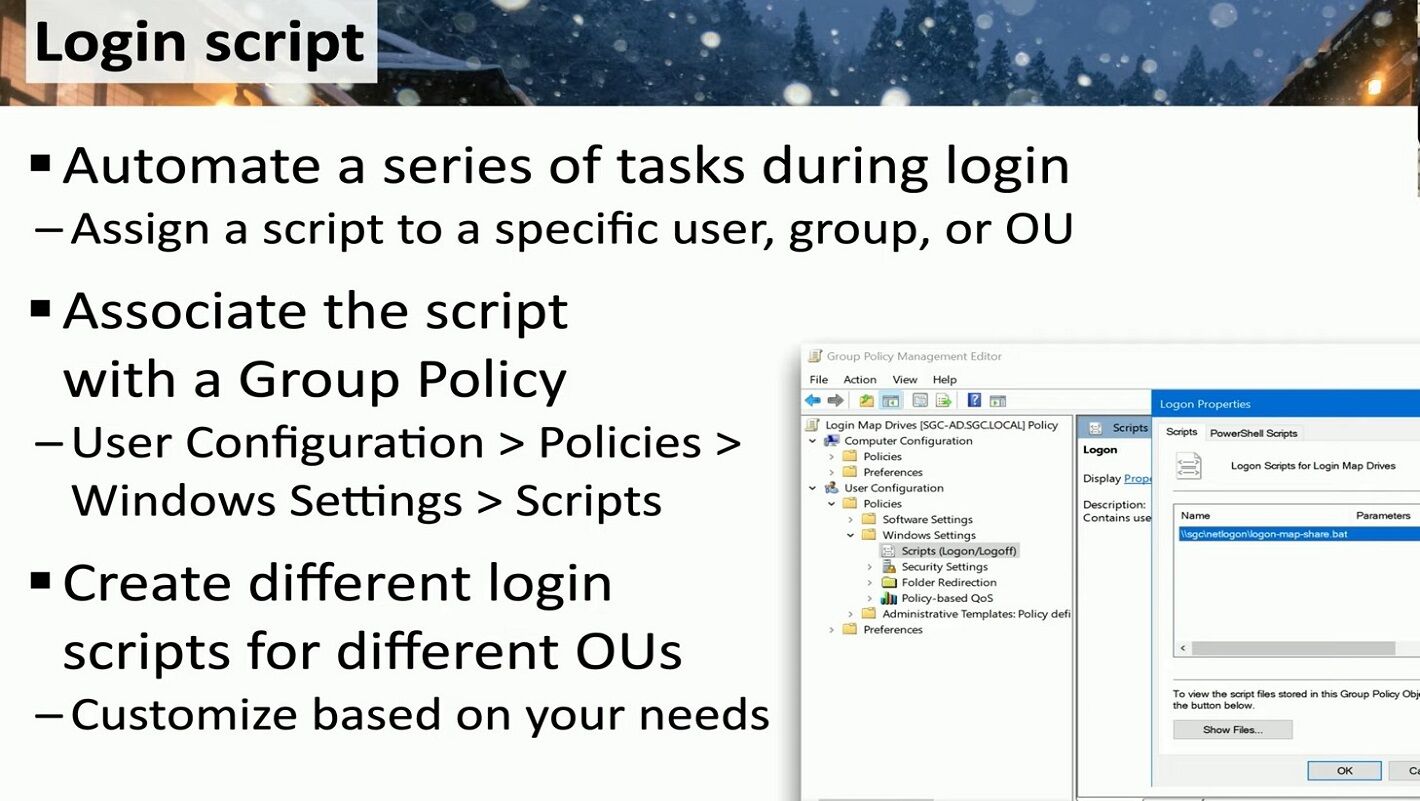
In the Group Policy Management Editor, navigate to User Configuration > Policies > Windows Settings > Scripts (Logon/Logoff).
Double-click on “Logon” to open the Logon Properties dialog box.
Step 6: Add the Script
Click “Add…” to add a new script.
In the “Script Name” field, browse to the path where you saved your script (e.g., \YourServerSharedFolderLoginScript.ps1).
If your script requires parameters, you can add them in the “Script Parameters” field.
Click “OK” to add the script, then click “Apply” and “OK” to close the dialog boxes.
Step 7: Enforce the GPO
Ensure that the GPO is linked to the correct OU and that it is enforced. This ensures that the policy is applied to all users within the OU.
Conclusion
By following these steps, you can automate a series of tasks during user login through a login script configured in a Group Policy for a specific Organizational Unit.
This setup helps streamline processes and ensures consistent configuration across user accounts.
#ITAutomation #GroupPolicy #LoginScript
 the beginning of matching tips
Leave a comment