 homepage | the beginning of


Understanding the Blue Screen of Death (BSOD) and How to Troubleshoot It
Encountering the Blue Screen of Death (BSOD) on your Windows computer can be frustrating. This critical error screen appears due to hardware failures, driver issues, or software conflicts that cause the system to halt.
Common Causes:
- Hardware Failures: Faulty RAM, failing hard drives, or overheating components.
- Driver Issues: Outdated or corrupt drivers.
- Software Conflicts: Certain software clashing with system processes.
- Corrupt System Files: Essential Windows files becoming corrupted.
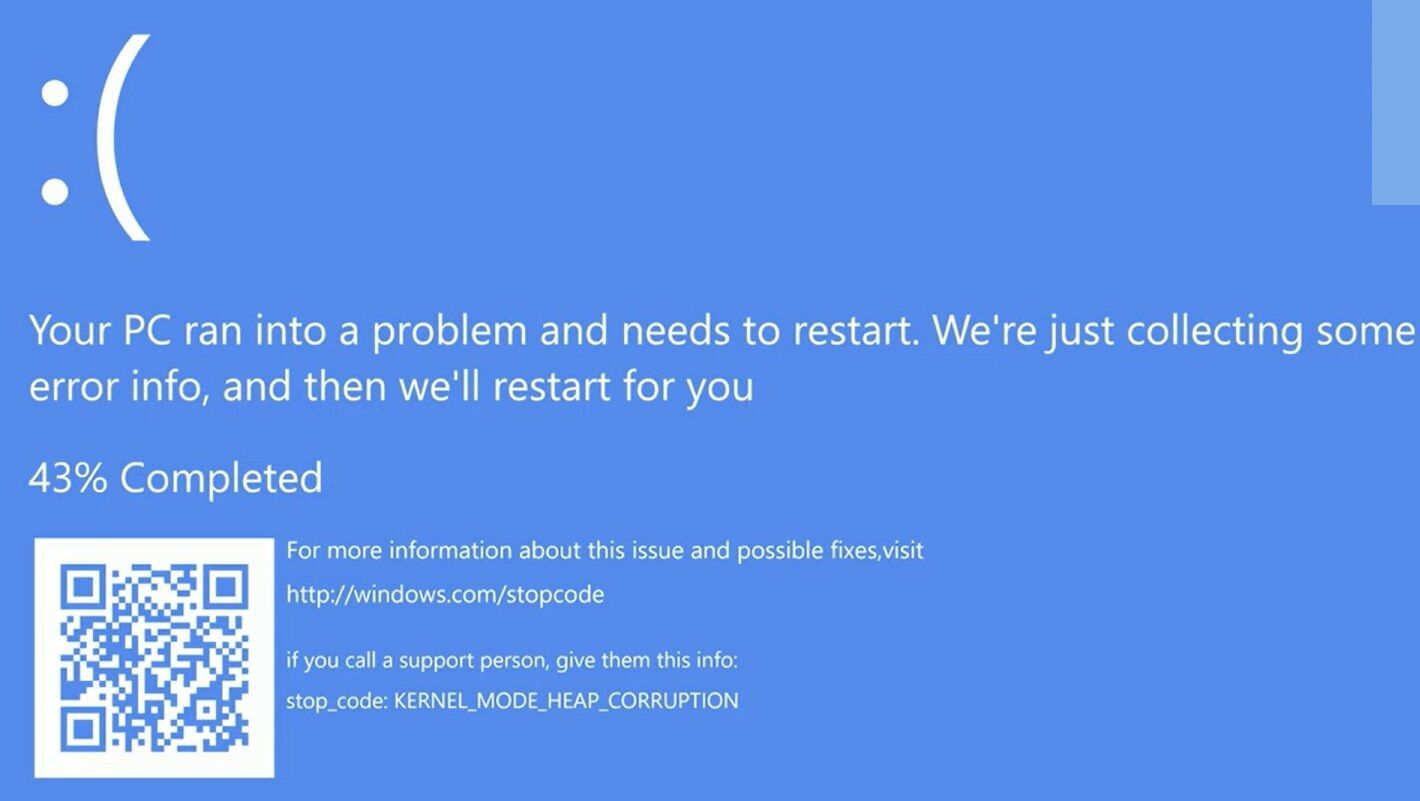
How to Troubleshoot BSOD:
If your system is stuck at the BSOD and you can’t access Windows, so follow these steps:
- Boot into Safe Mode:Restart and press F8 (or Shift + F8) repeatedly.Select “Safe Mode” from the menu.
- Check for Hardware Issues:Ensure components are properly connected.Run memory diagnostic (
mdsched.exe) and check disk (chkdsk /f /r) tools. - Update Drivers:In Safe Mode, use Device Manager to update drivers or download the latest versions from manufacturers’ websites.
- Run System Scans:Open Command Prompt and run
sfc /scannowto scan and repair system files.Usechkdsk /f /rto fix disk errors. - Uninstall Problematic Software:In Safe Mode, go to Control Panel > Programs and Features.Uninstall any recently installed software.
- Check for Overheating:Ensure proper ventilation and clean dust from components.
Encountering a BSOD can be daunting, but following these steps can help you diagnose and resolve the issues.
#WindowsTroubleshooting #TechSupport #BSODSolutions
 the beginning of matching tips
Leave a comment