 homepage | the beginning of


🌐 How to Organize a Default Domain with Subdivisions in Active Directory Using Group Policy Management 🌐
Setting up a structured and efficient Active Directory (AD) environment is crucial for managing resources and policies across an organization. One effective way to achieve this is by creating a hierarchy of Organizational Units (OUs) within your domain.
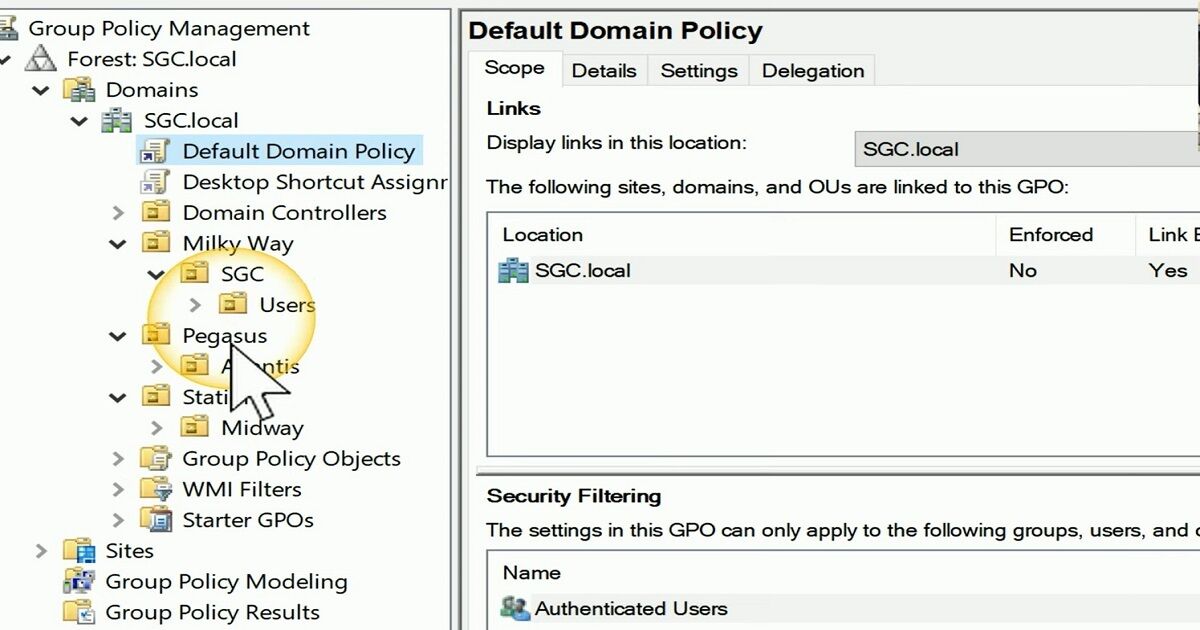
This structure can represent various divisions such as different buildings, national and international branches, or specific departments with unique policy requirements. Here’s how you can do it:
1. Open Group Policy Management
- Launch the Group Policy Management Console (GPMC): You can find this by searching for “Group Policy Management” in your start menu or running
gpmc.msc.
2. Create Organizational Units (OUs)
- Open Active Directory Users and Computers (ADUC): This is where you’ll create and manage your OUs.
- Right-click on your domain and select New > Organizational Unit.
- Name your OU: Choose a name that represents the division, such as “Headquarters”, “Branch_A”, “IT_Department”, etc.
- Repeat this process for each subdivision you need.
3. Organize OUs into a Hierarchy
- Drag and drop: You can drag OUs into other OUs to create a nested structure. For instance, under “Headquarters”, you can have OUs like “HR”, “Finance”, “IT”, etc.
4. Link Group Policy Objects (GPOs) to OUs
- Right-click on an OU and select Create a GPO in this domain, and Link it here.
- Name your GPO: For example, “IT_Policies” for the IT department.
- Edit the GPO: Define the policies you need for that specific OU by right-clicking on the GPO and selecting “Edit”.
5. Configure GPO Settings
- Set Computer Configuration: This could include software installations, security settings, etc.
- Set User Configuration: This could include login scripts, folder redirection, etc.
- Apply Filters: Use WMI filters (Windows Management Instrumentation) if you need the GPO to apply to specific conditions.
6. Verify and Test
- Run GPUpdate: On client machines, run
gpupdate /forceto apply the new policies. - Check RSOP: Use the Resultant Set of Policy (RSOP) tool to verify which policies are being applied to which users and computers.
Summary
By organizing your domain into a well-structured hierarchy of OUs and linking specific GPOs, you can efficiently manage policies tailored to different parts of your organization. This method enhances clarity and control, ensuring that each division receives the appropriate configurations and policies.
👨💼👩💼 Stay organized, stay efficient!
Feel free to ask any questions or share your own tips in the comments!
#ActiveDirectory #GroupPolicy #WindowsServer #ITManagement #OrganizationalUnits
 the beginning of matching tips
Leave a comment